 Workyol
1Install Workyol
About 2 minutes
- Open the e-mail with your licence key and click the download link (valid 7 days; reply to the e-mail for a new one).
- Unzip the file (right-click → Extract all) and open the Workyol folder.
- Double-click start.bat on Windows, or start.command on a Mac (the first time: right-click → Open). Workyol opens in your browser.
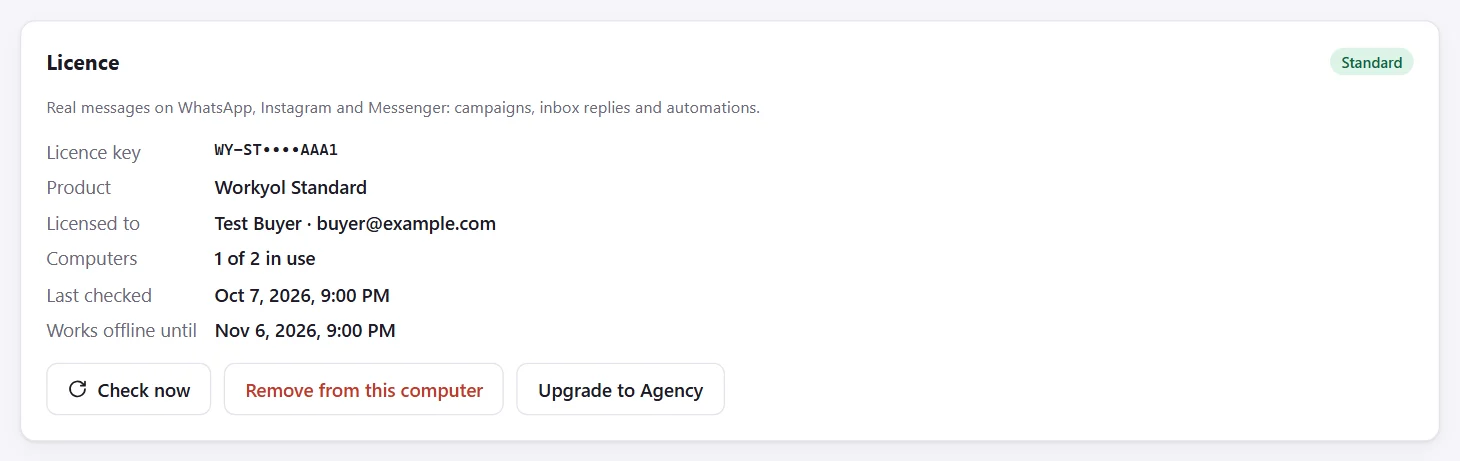
- Open Settings → Licence, paste your key and click Activate.
Node.js: the free engine Workyol runs on
Windows: if it is missing, start.bat asks “Install it now? [Y/N]”. Press Y, click Yes if Windows asks for permission, and Workyol starts by itself about a minute later.
Mac (or if the automatic install does not work): the page nodejs.org/en/download opens. Ignore the code box at the top and click the green button “Windows Installer (.msi)” or “macOS Installer (.pkg)”, open the file, click Next until Install, then start Workyol again.
2Connect your Meta accounts
About 30 minutes, once
Open Set up in the menu. It lists the steps in order; each one has a button that opens the right Meta page, tells you what to copy back, and ticks itself green when it works.
Have this ready
- The Facebook account that manages your business Facebook Page. Instagram and Messenger only need that Page (with your Instagram professional account linked to it).
- For WhatsApp: a phone number that is not in use on the WhatsApp app (or start with Meta’s free test number and add your own number later).
- A payment card for WhatsApp Manager: Meta bills its message fees to you directly. Replies within 24 hours are free.
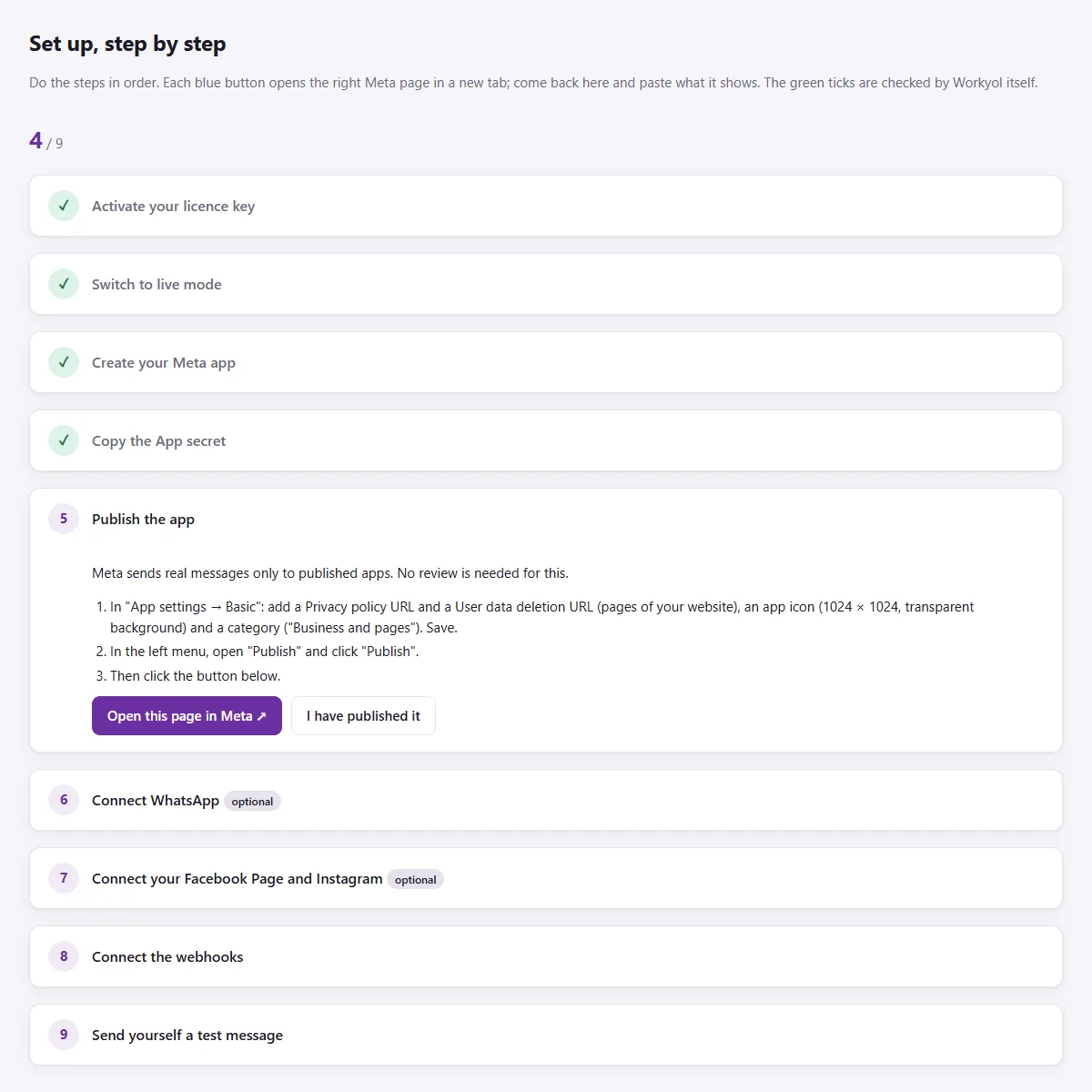
WhatsApp, Instagram and Messenger are each optional: connect only what you use. The illustrated guide in the app (Help) shows every Meta screen of every step.
3Let an AI assistant guide you
Optional, 1 minute to connect
Workyol works with the AI assistant you already use:
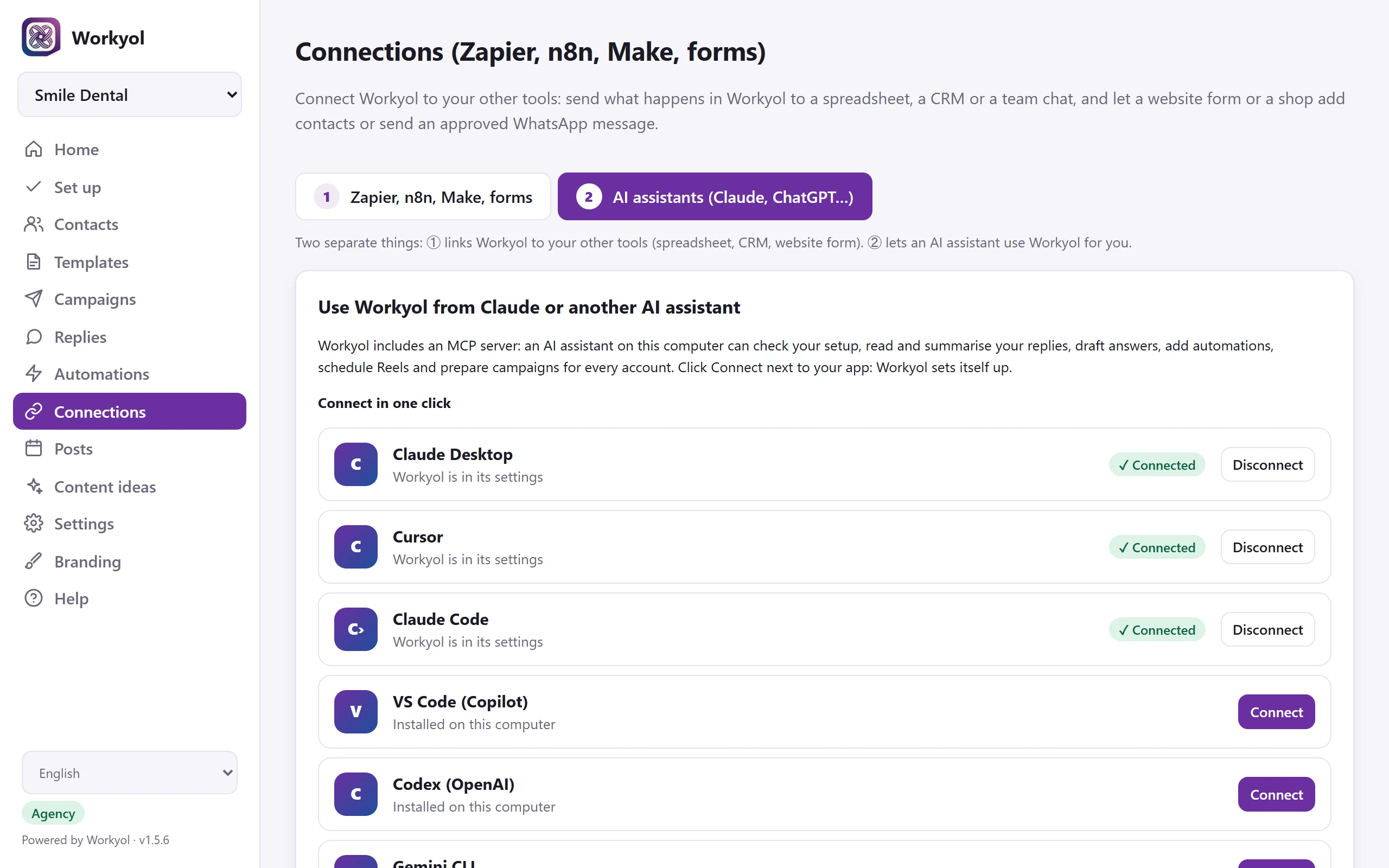
- In Workyol, open Connections → AI assistants.
- Click Connect next to your app, then close and reopen that app once.
- Ask it:
Use Workyol to check my setup and tell me, step by step, what to do next.
It sees what is done and what is missing and explains each step in your language. Later you can ask it to summarise your messages, prepare a campaign or schedule your posts. It never sends a message or publishes anything without your yes.
?Need help?
The illustrated guide
Open Help in the app: every step with the real Meta screens.
We do it with you
A call where we connect your Meta accounts, numbers and webhooks together: $149.
Book the setupWrite to us
Reply to your licence e-mail or write to hello@workyol.com.